
The Griffon Alert text messaging and e-mail system is designed to enhance and improve communication so that all members of the Missouri Western campus community (students, staff and faculty only) can stay informed in the event of an emergency that affects all or part of the campus.
Already have an account? Current users can login to update your information, add or change your e-mail address, or unsubscribe. Click here for user login.
GRIFFON ALERT IS COMPRISED OF:
The system will be used only for emergency contact purposes. Griffon Alert text messaging and e-mail will not be used to distribute advertising or other unsolicited content. Please note that subscribers to Griffon Alert text messaging and e-mail will pay no fees for the service, other than any regular fees associated with text messaging services.
Signing up is quite simple! Here’s how:
- Click “Sign-Up Today”
- Logon with your Missouri Western e-mail username and password.
- Follow the directions on screen.
- Be sure to have the mobile phone you want to receive messages from when you sign up, as you will need it to enter a confirmation number.
- Reminder: You are responsible for messaging charges by your service provider.
Already have an account? Current users can login to update your information, add or change your e-mail address, or unsubscribe. Click here for user login.
Before You Register:
- This service is completely voluntary and available only to the campus community. You may opt-in or opt-out at any time.
- You are responsible for messaging charges by your service provider.
- You will not receive messages for which you did not register.
- Your information is not shared with nor sold to third parties.
When Griffon Alert is activated, voice messages are sent to specified phones within each department on campus and to selected key personnel phones. The voice messages will deliver a similar message to that sent to those who’ve signed up for the text message and e-mail alert portion of Griffon Alert. Faculty, staff, student staff and persons receiving the voice alerts should re-think the way we answer our phones. Because this system is computer generated, there are initial and other delays when receiving the message. This is much the same as telemarketing programs that many get accustomed to hanging up on. If you are answering a phone that could receive a Griffon Alert message, the message will have a long pause and then state “Griffon Alert”, pause and then the message will be heard. The system will also ask for you to acknowledge receipt of the message by pressing the # key. When answering a listed phone, be patient, wait for the message and acknowledge.
Alert Beacons with voice annunciators are located in the halls of most buildings at Missouri Western.
When a message is being delivered, the beacon will light up with flashing lights and an emergency sound will be emitted from the beacon to gain initial attention. After a brief time, the sounder volume will decrease allowing a voice annuciator above the beacon to be heard. The message being delivered will be heard from a digitally produced voice. The message will also be displayed in text form on an LED screen located on the front of the beacon.
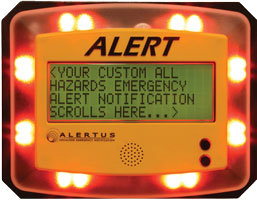 LED Screen on Beacons
Whenever an alert message is being delivered through Griffon Alert, several white outdoor strobes will be triggered. These are located on the outside of campus buildings to indicate to outdoor occupants that some type of warning is being issued and that they should investigate further.
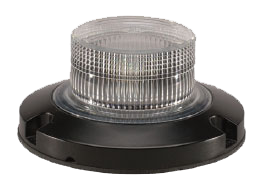 Light Strobe
GRIFFON ALERT WILL BE USED FOR:
- Tornado warnings
- Bomb threat and other emergency evacuations
- Active shooter on campus
- Shelter-in-place due to outdoor hazards (e.g. Hazardous material spills)
- Campus closing and classes canceled due to weather or other circumstances
- An all clear declaration
- Testing of the system
GRIFFON ALERT WILL NOT BE USED FOR:
- Daily minor emergencies
- Fire evacuations (systems exist in all public buildings)
- Advertising
- Promotions
- Personal messaging
Emergency actions requested by Griffon Alert should be followed by all faculty, staff, students and visitors until an ALL CLEAR is issued. All components of the Griffon Alert System will be used to announce the ALL CLEAR for any major emergency.